Release Date 30.10.2026
Intro
One of the main design goals for Seed has always been to let players experiment with new ways for people to organize. Seedlings could come together for any reason: to share a home, to run a business, to collaborate on a project… We call all of these organizations, and you already know four types: Societies, Businesses, Groups, and Departments. These types were pretty hard-coded, and not very flexible.
At first we asked ourselves: what is the difference between these types of organizations? Groups could directly invite Seedlings to become members and let Seedlings share homes. Businesses, meanwhile, hired Seedlings via job applications, and could set wages and schedules for their member Seedlings.
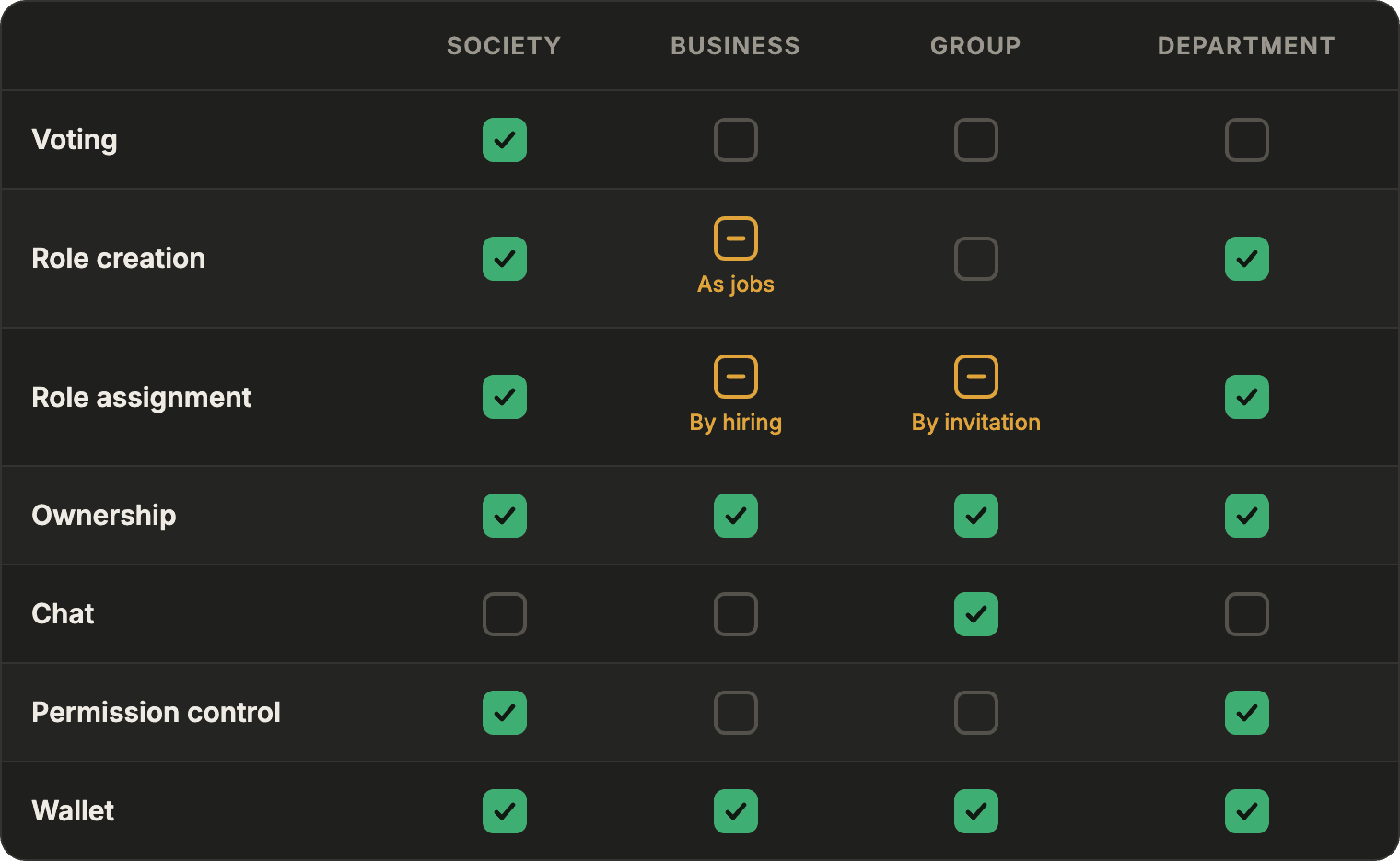
What each organization could do at the release of 0.3. Some things have already changed – all organizations have chats now.
We know that the organization system is capable of so much more, and we want to give players the tools to define their own organizations, rather than keep building out these four particular types. If every organization type can potentially use every feature, we can start to imagine lots of new kinds of structures.
Before, Groups were only accessible via the app windows, and Businesses and Societies had their own separate windows despite a lot of functional overlap. Unlocking this cool stuff means making some major changes to the way we communicate these concepts in the UI.
That’s what this post is about: one new window, a couple of goodies, and a layout that makes it easier to see how the organization types are alike and how they differ.
One thing up front: this update doesn’t let groups, societies or several owners own a business. We know a lot of you want it. Much of this update is groundwork for organizations doing more together, but we don’t have anything to share on organizations owning organizations yet. If you want to run a business with friends today, a business can now have up to five Partners (more on that below).
The New Organization Window
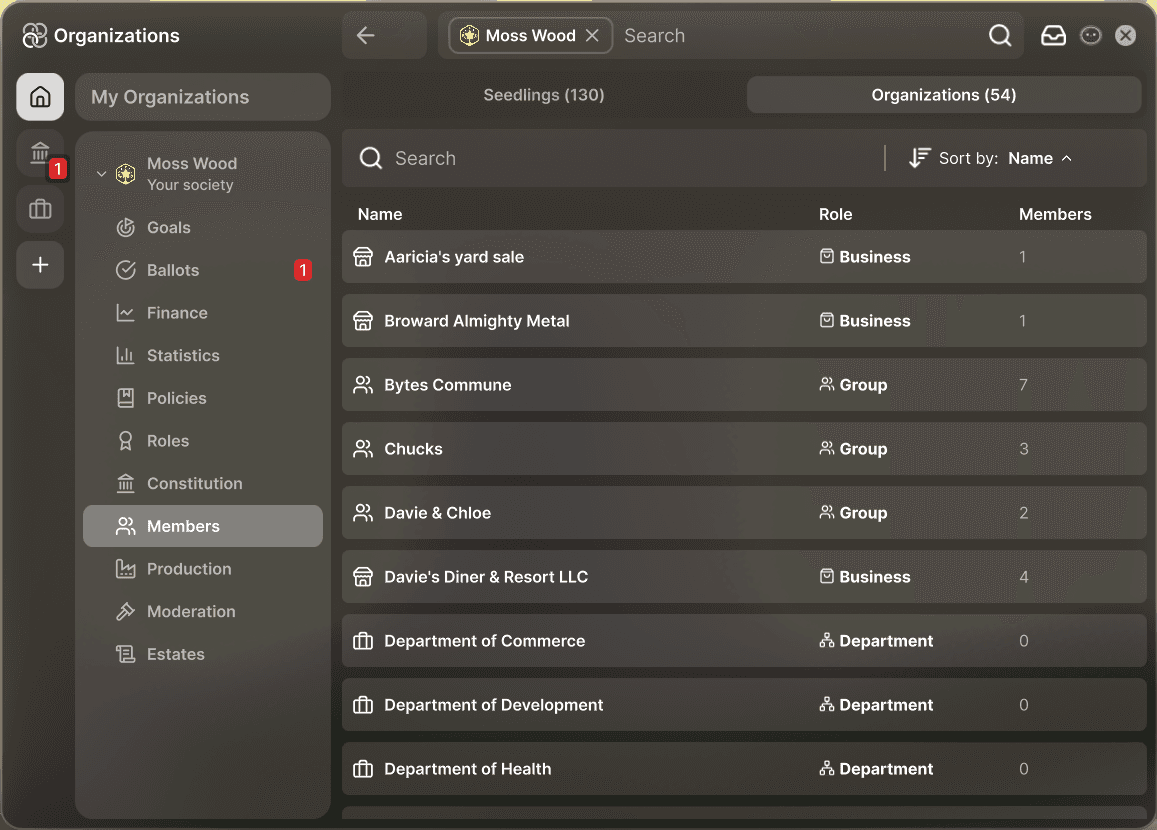
In 0.4, you’ll notice that there’s one fewer button on the HUD! The Society and Business windows are now one window, called Organizations.Along the left side of the window, there’s a rail with a button for each type of organization you belong to, as well as a “My Organizations” section, which lists the organizations you’ve starred, and a universal “new organization” button. Groups and Departments show up the same way: if you’re in one, you’ll see the icon for its type on the rail.
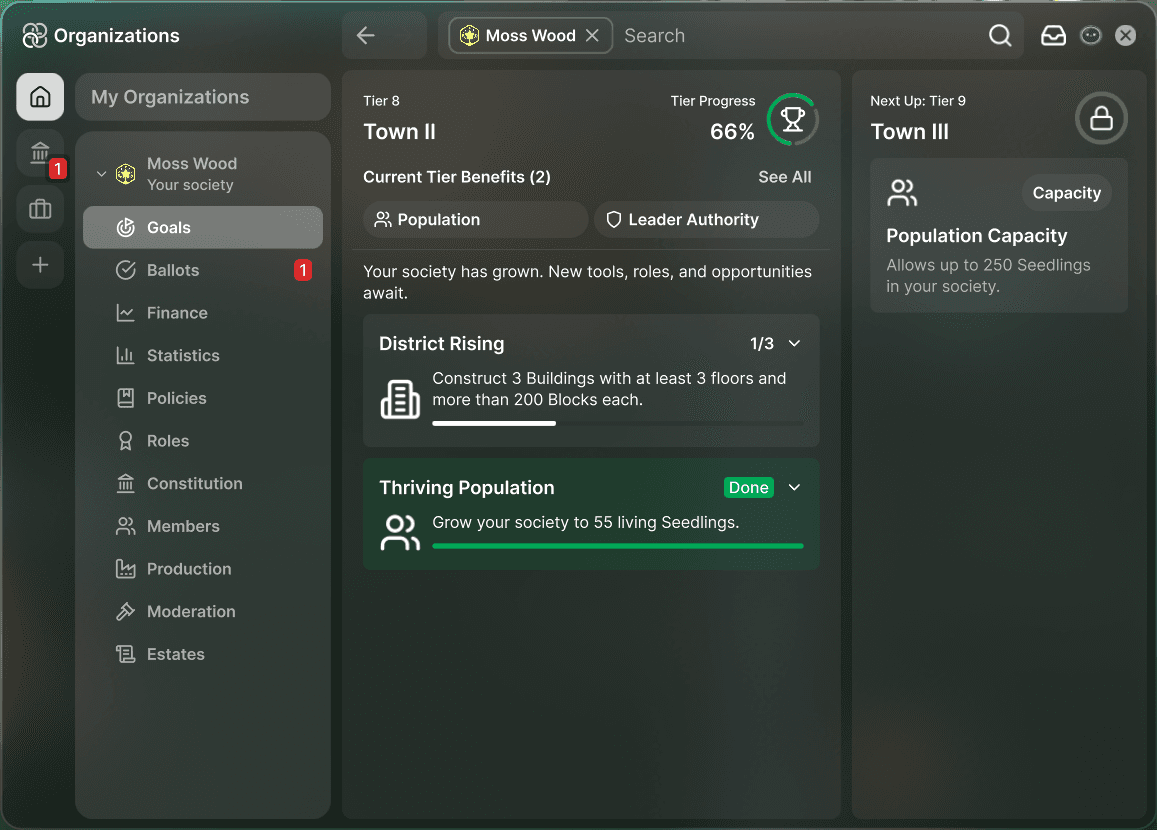
Many of the sections in this window will be familiar – goals, ballots, finance, statistics, etc., are all unchanged. Access to these sections is now more consistent across organization types. For example, a business’s finance section has its own sidebar entry, just like a society’s.
Navigation
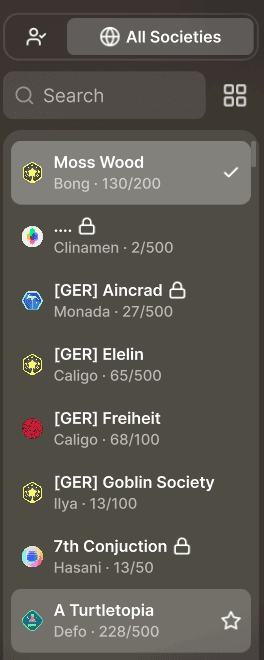
The window has a few new navigation options. Along the top of the sidebar there is a switcher that shows either just your organizations, or all organizations of a particular type. The grid button opens a full-width table, so you can compare all organizations at a glance. For societies, the table shows the tier, how full it is, the cultivators online, open positions with their wage range, and the plots new members can claim.
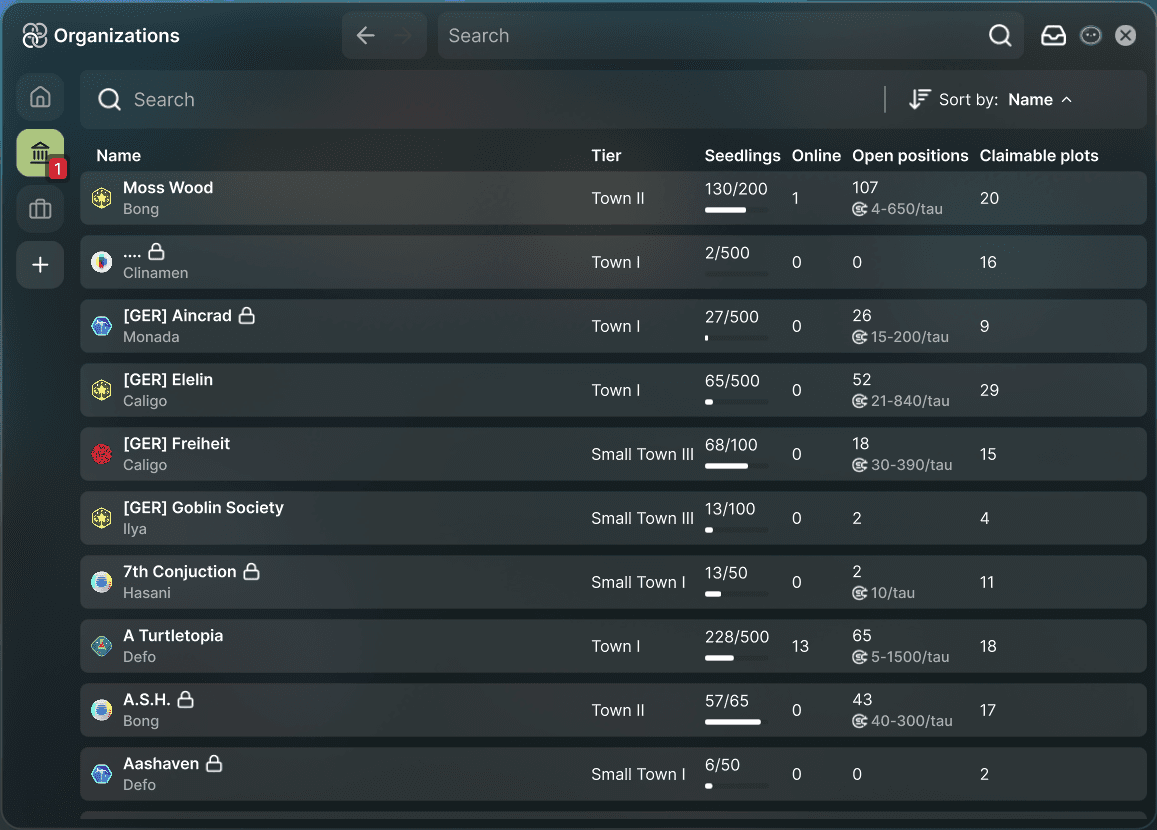
Both the sidebar and the rail can be reordered by dragging. The window also remembers your place – reopening it takes you back to the same organization and section.
Organizations, Properties and the Marketplace share back and forward buttons, so you can follow a link from an organization into one of its buildings and step straight back again, like in a web browser. Hover over an arrow to see where it goes. Your mouse’s back and forward buttons work too, as do Cmd+Left and Cmd+Right on a Mac, or Alt+Left and Alt+Right elsewhere.
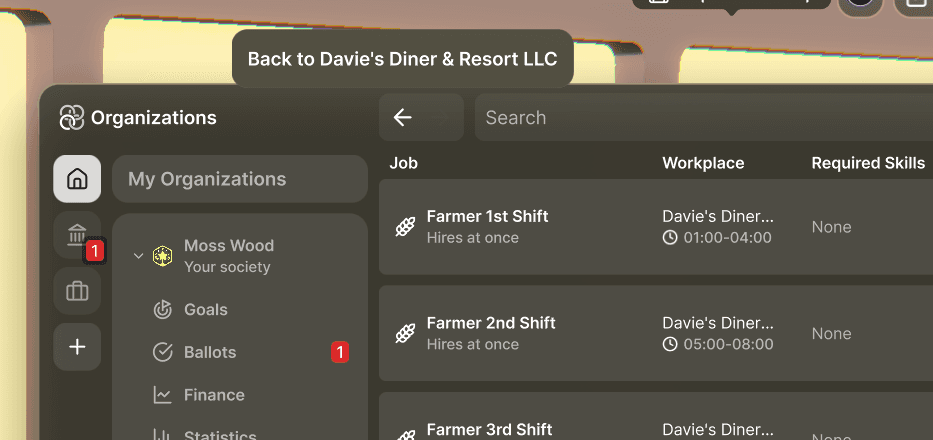
You can also star organizations. Hover over any organization and click the star to add it to My Organizations, whether you’re a member or not. Your own society starts out on the list, and the businesses you buy from or the societies you keep an eye on are always one click away.
Overviews
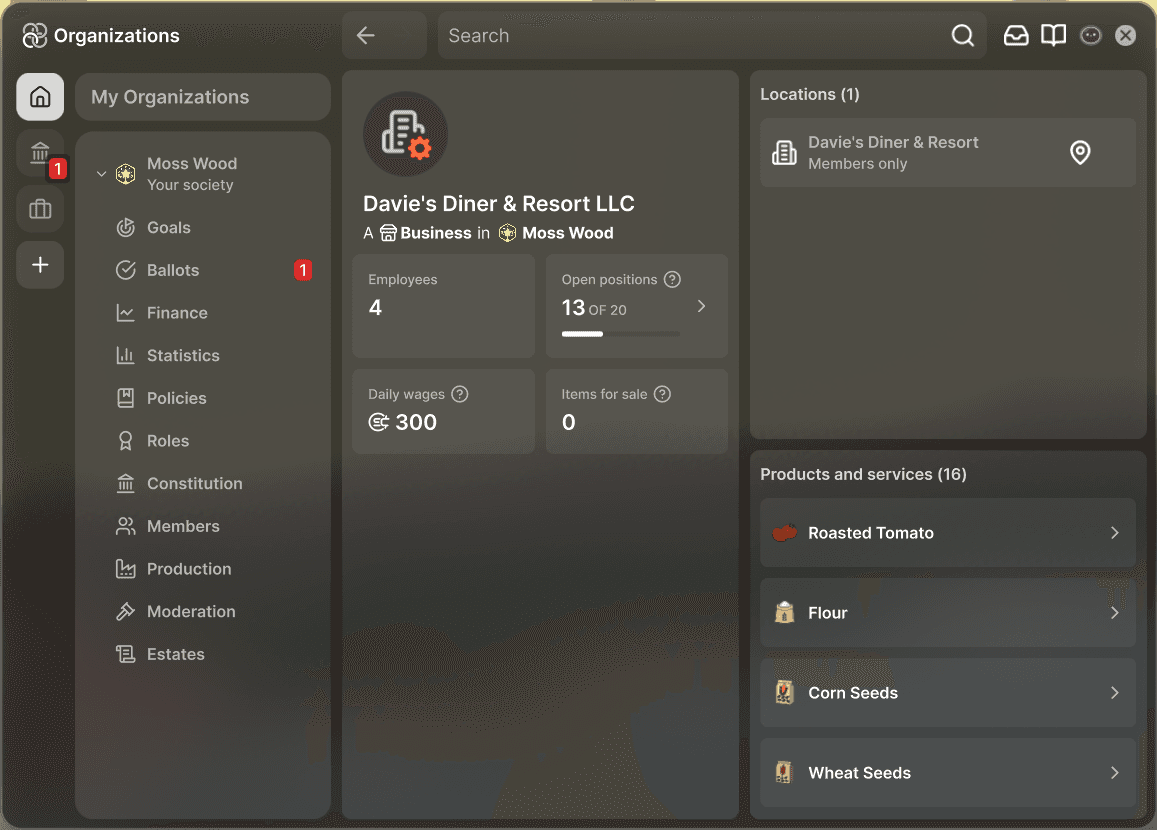
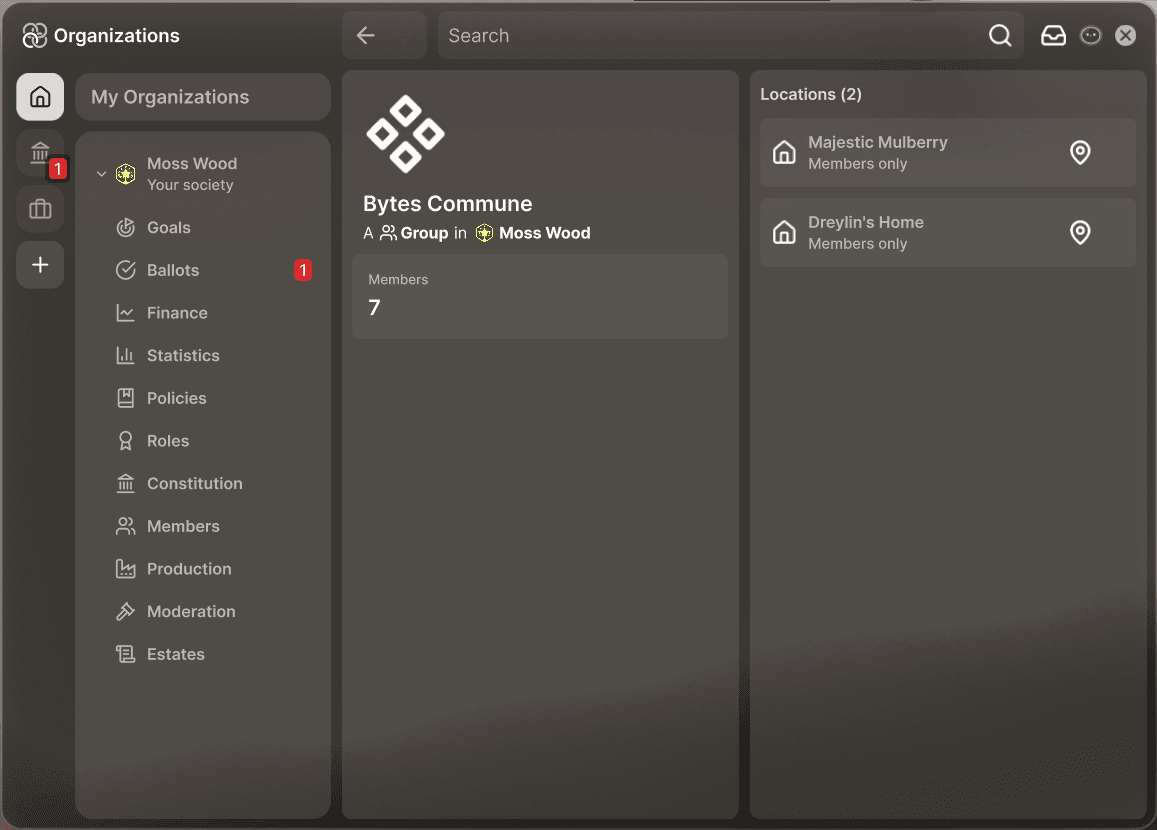
Every organization now has an overview page, built dynamically from the organization’s capabilities and properties. You can see a complete list of the organization’s locations, things in the organization that need your attention, a summary of its stats and market trades, and more.
Members
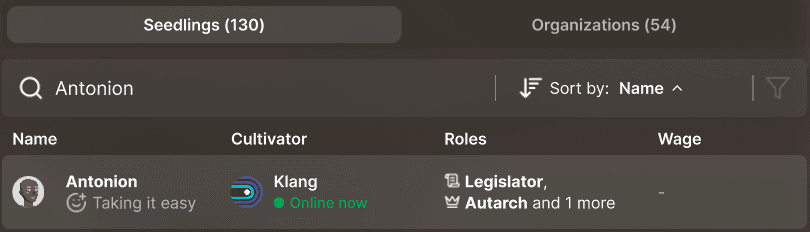
All organizations have a Members section (or an “Employees” section in the case of businesses). This is a new view that lists every Seedling who has a role in your organization. You can filter by role or by who’s online right now, and sort by Last online to see how long it’s been since each cultivator played.
Organizations can be members of an organization too. For example, businesses are members of their society, and the Organizations tab lets you see all the organizations in a society.
Jobs
The old business window split information up by branch. The new window gives a higher-level view of your organizations, so all of a business’s jobs are now on one page, with filters and an expandable section for each location.
Inbox
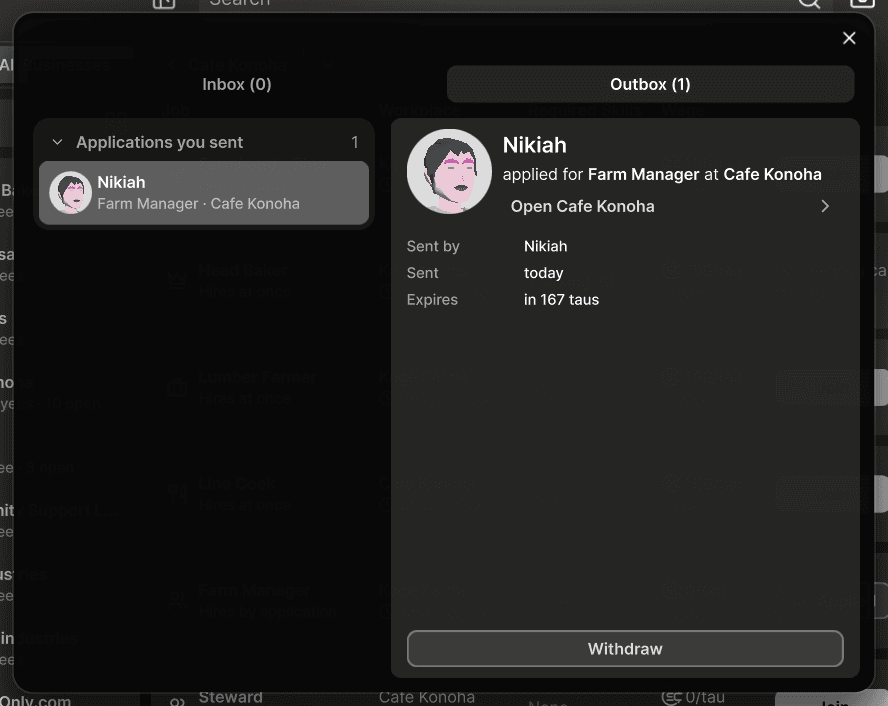
There is a new inbox icon in the top right of the organization window, next to PAM. It collects every role invitation and job application across all your organizations, and the ones you sent are in the Outbox tab.
Roles and Permissions
Roles
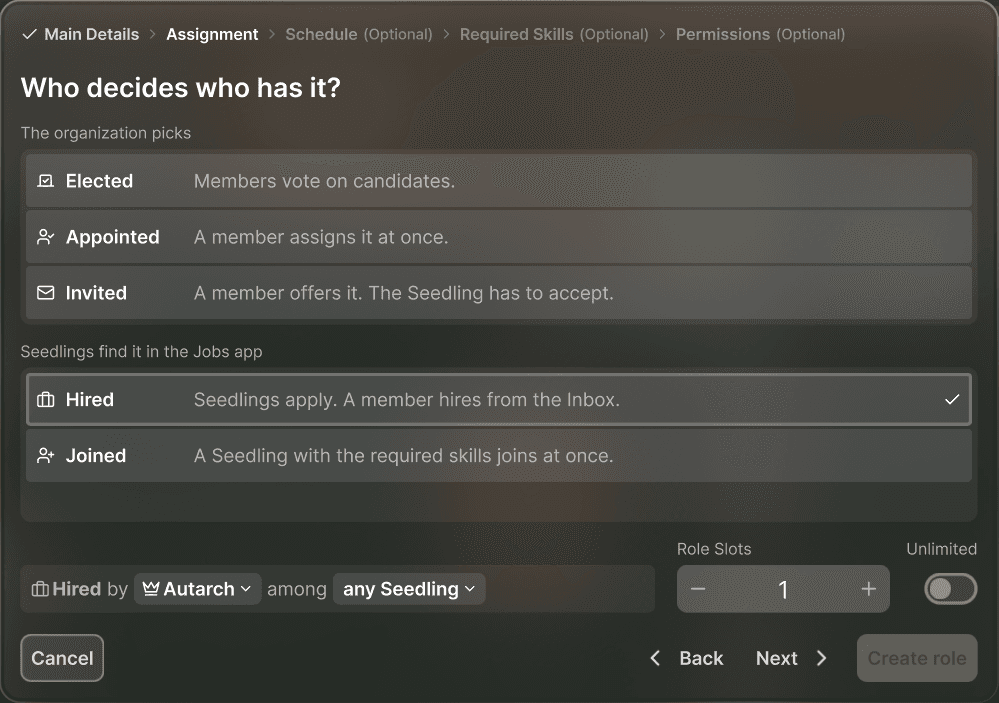
The new window brings more than just UI changes, and there are a couple of additions to the roles feature to tell you about. As we unify the functionality of organizations, we have also standardized all the different ways a Seedling can receive a role. These assignment types are new options when you choose how a role is assigned in the roles editor. For example, societies can now make roles that are filled by invitation, which the Seedling must accept, or roles that show up as jobs in the Jobs app. Not every organization type has every assignment type, though. Groups, for example, invite Seedlings instead of hiring them.
“Quick hire” has been renamed to “Joined”. It works the same way as before.
Creating Roles
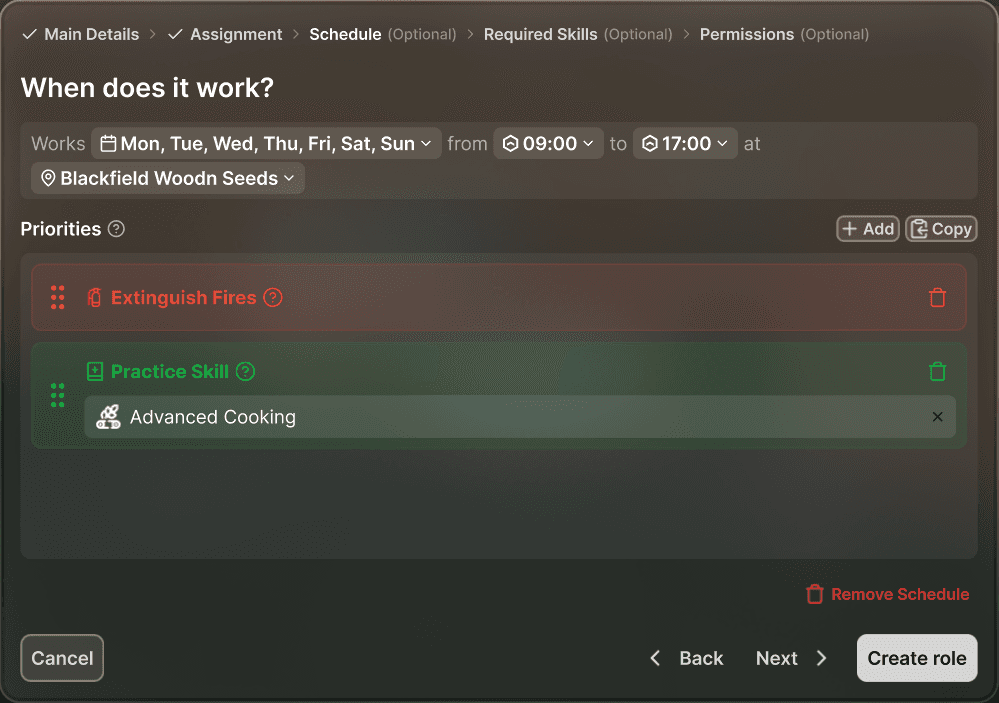
Making a new role used to mean one long form with every option on it at once. The roles editor now walks you through it in steps: first the role’s name, icon and wage, then who decides who gets it, then its schedule, required skills and permissions. Each step asks one question, like “Who decides who has it?” or “When does it work?”. Schedule, Required Skills and Permissions are optional, so once you reach them you can create the role straight away and fill in the rest later.
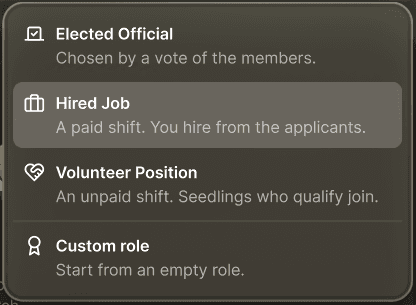
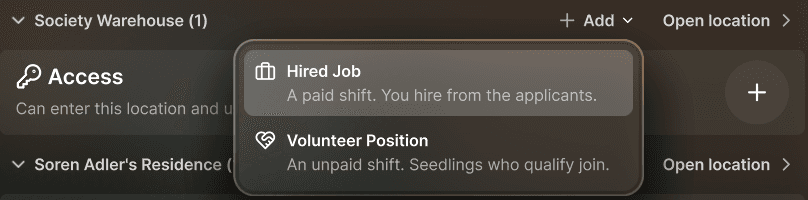
You also don’t have to start from scratch. The “New” button offers a few ready-made roles, such as a Hired Job, a Volunteer Position or, for societies and departments, an Elected Official. Each one comes with the right assignment type and a sensible starting setup, and you can change anything in it. On the Roles page (the Jobs page for a business), every location has its own “Add” button, which creates a job already set to work there.
Business Partners
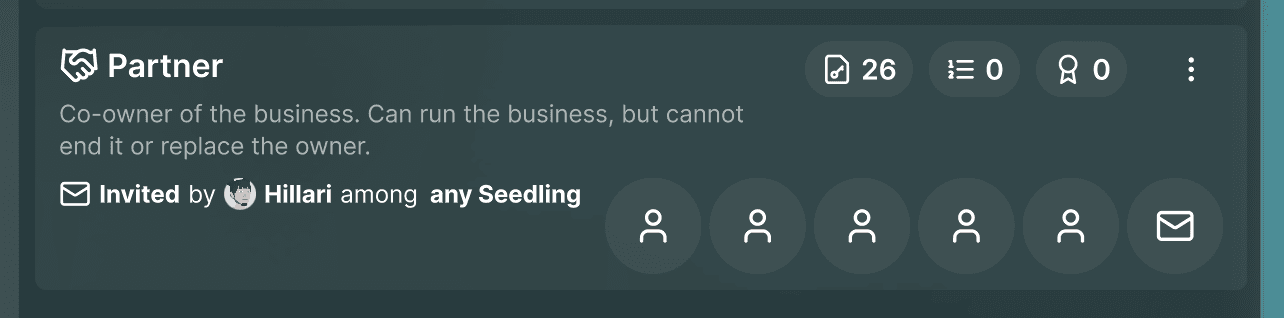
Businesses now start with a “Partner” role, for running a business together with someone. You can offer it to up to five Seedlings, and they join by accepting the invitation, like group members.
Partners can run the business with you, but by default they can’t disband it, delete roles, change the Owner and Partner roles, or spend its money.
The Partner role is fully editable. You can delete it if you don’t want it, or give it more or fewer permissions. Think of it as a suggested starting point rather than a fixed role.
Permissions
We’re working on making the permissions system easier to use and understand. This is a separate endeavor from the organization window, but the first batch of changes will land together with it. In the roles editor, permissions have been renamed and reorganized into tabs, to make their connection to the UI or the game world clearer:
Menus – what cultivators with the role can do in the game’s windows, grouped by window: Properties, Land Planner, Organizations, Spark and so on. For example, choosing residents, running machines or editing market orders.
World – what Seedlings with the role can do in the game world itself: enter and use buildings and plots without paying an entry fee, and take items from and put items into vehicles.
Society – only for your society’s roles, and covers running the society itself, such as proposing and voting on laws, founding organizations, buying land and editing the society’s details.
This is purely a change to how permissions are communicated and displayed – none of your existing roles will be affected.
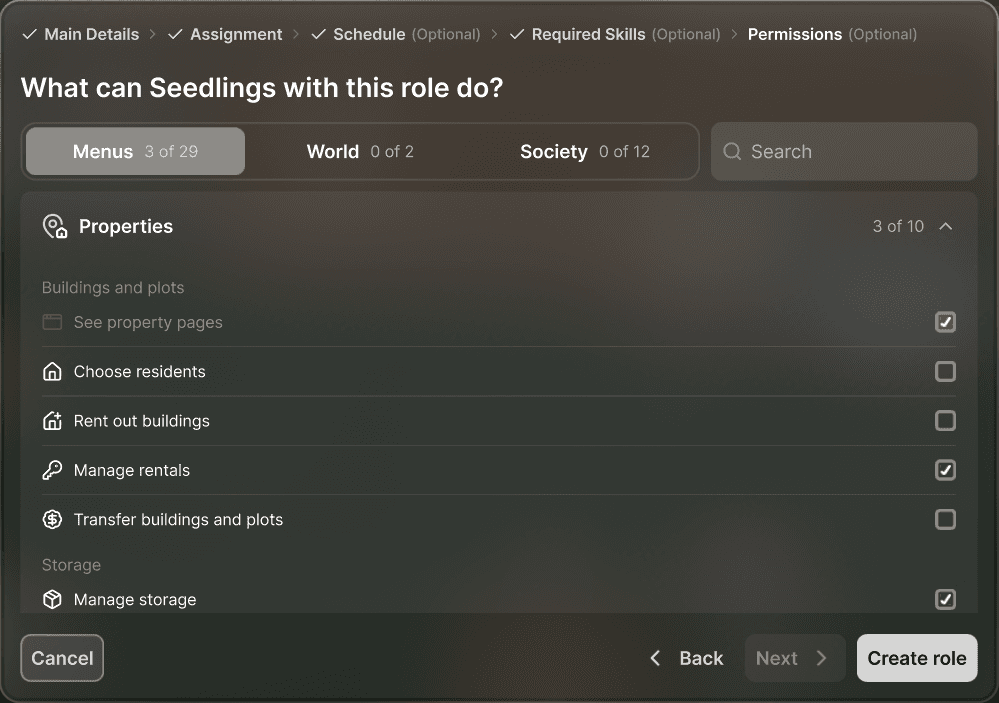
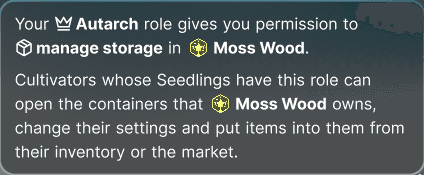
Each permission now has a more detailed description on hover too.
We also want it to be obvious when a permission is the reason you can or can’t do something. Controls that depend on a permission now show a small icon when you hover over them or their section: a lock if you can’t use it, an eye if you can look but not change anything, and a key if you can make changes. Hover over the icon to see why, for example “Your Autarch role gives you permission to manage storage in Moss Wood.”, or which roles you would need.


Changes to the Properties Window
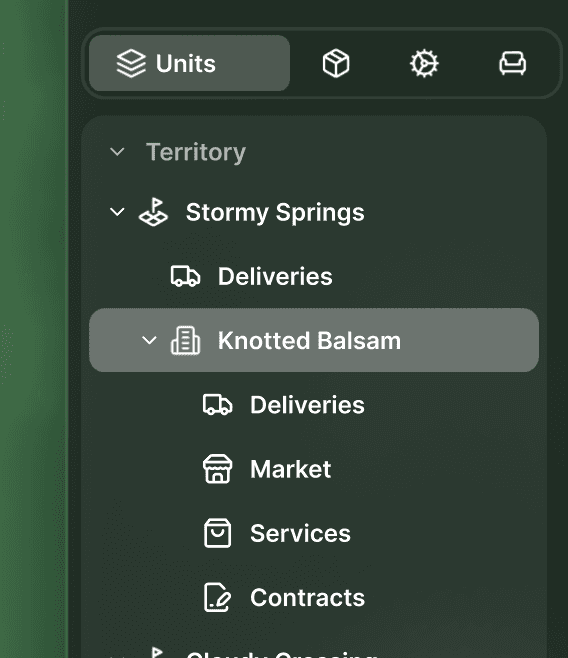
We want to make a clearer distinction between controls for one particular location and controls for the organization as a whole. For this reason, “Services” and “Contracts” have moved from the business window to the Properties window, because they’re about one location, not the whole business.
Deliveries and Market have also moved from the tabs along the top of the Properties window into its sidebar, joining their new friends.
On the Future of Organizations
Like all of Seed, the organizations feature is still evolving. There is a huge amount of untapped depth to these features – new and old – that we’re still very excited to explore with you. We know you’re excited too!
Today we’re clearing the ground to make more features possible in the future. The new organization UI is much more modular than the old business and society windows, which will let us start sharing more of the organization system’s hidden capabilities with you. One example is the new assignment types on roles – they wouldn’t have been possible a couple of months ago.
We’ll keep improving the window itself, and your feedback will shape a lot of that. Looking forward to it!